










![3D Explainer Video - ScribbleLive.mp4_snapshot_00.12_[2022.03.09_03.14.16]](https://increditors.com/wp-content/uploads/elementor/thumbs/3D-Explainer-Video-ScribbleLive.mp4_snapshot_00.12_2022.03.09_03.14.16-r7wb53mx72rxst3qcqyrfxdmeyzb5r9jbl0wbjujh4.png "3D Explainer Video – ScribbleLive.mp4_snapshot_00.12_[2022.03.09_03.14.16]")































A video codec is the algorithm that compresses and decompresses video files. H.264 is today’s universal delivery standard, H.265/HEVC cuts file sizes roughly in half at the same quality, ProRes is the go-to production format, and AV1 is the royalty-free future of streaming. Picking the wrong codec for the wrong stage — shooting, editing, or delivery — costs you quality, time, or both. This guide explains every major codec in plain language so you can make smarter decisions without becoming a technical expert.
- What Is a Video Codec — and Why Does It Matter?
- Containers vs. Codecs: The Difference Explained
- How Video Compression Actually Works
- The Major Video Codecs Compared
- Which Codec to Use at Each Stage of Production
- Codec Requirements for Every Major Delivery Platform
- Quality vs. File Size: Reading Codec Trade-offs
- Frequently Asked Questions
- Verdict
What Is a Video Codec — and Why Does It Matter?
A codec is a software algorithm that compresses video when it is saved and decompresses it when it is played back. The word itself is a portmanteau of “compressor-decompressor” (or “coder-decoder,” depending on who you ask). Without codecs, a single minute of raw 4K footage would occupy roughly 48 GB of storage — making modern video creation practically impossible.
Why does this matter to someone who is not a video editor? Because codec decisions affect three things that every stakeholder cares about: file size (which determines storage and upload costs), visual quality (which determines how professional your content looks), and compatibility (which determines whether your audience can actually watch it). Choose the wrong codec at the wrong stage and you will either end up with bloated files that choke your workflow or compressed footage that degrades through every round of editing.
Think of a codec like a shipping pallet. The pallet is designed to fit as much cargo as possible (compression) while still being unpacked cleanly at the destination (decompression). Some pallets are optimised for speed, others for fragile cargo, and others for cost. Video codecs work the same way — each one is a different engineering trade-off between quality, file size, processing demand, and compatibility.
Lossy vs. Lossless Compression
Almost every codec used in professional video production is lossy — it discards data that the algorithm judges to be perceptually invisible to the human eye. A well-designed lossy codec (like H.264 at a high bitrate) is effectively indistinguishable from the original to most viewers. A poorly configured one introduces artefacts: banding, blockiness, or “mosquito noise” around fast-moving edges.
Lossless codecs preserve every pixel exactly. They produce much larger files and are almost exclusively used for archival masters or very specific scientific/broadcast workflows. If your team ever asks about lossless encoding, clarify what stage the footage is at — it is rarely practical for delivery.
Containers vs. Codecs: The Difference Explained
One of the most common points of confusion is mistaking the container for the codec. The container (also called a wrapper) is the file format — the outer box — that holds video, audio, subtitles, and metadata together. The codec is the compression standard used on the video stream inside that box.
When you see .mp4, that is a container. The video inside it could be encoded with H.264, H.265, or even AV1. When you see .mov, that is Apple’s QuickTime container, which commonly wraps H.264, ProRes, or HEVC. The same codec can live inside different containers, and the same container can hold footage encoded with different codecs.
The practical takeaway: when a client sends you a file in an unfamiliar format, the first question is not “what is the extension?” but rather “what codec is the video stream encoded with?” Tools like MediaInfo (free, open-source) reveal both the container and the codec in seconds.
How Video Compression Actually Works
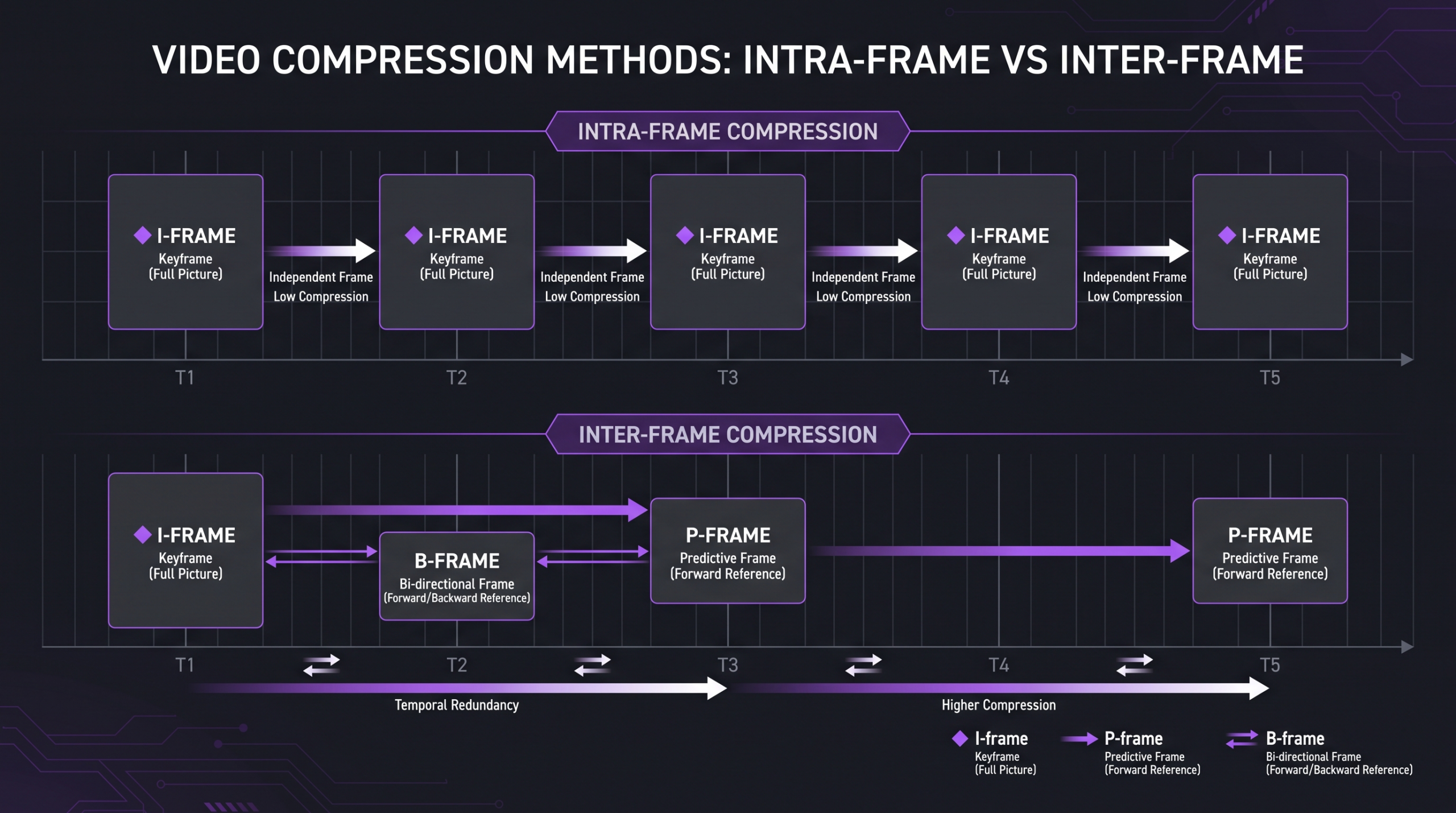
Video compression exploits two types of redundancy that exist in virtually every video file: spatial redundancy (similar pixels within a single frame) and temporal redundancy (similar regions across consecutive frames).
Intra-frame vs. Inter-frame Compression
Intra-frame compression (also called spatial compression) works within a single frame. It is essentially the same idea as JPEG image compression — it identifies areas of similar colour or luminance and encodes them more efficiently than storing every pixel individually. Codecs that use high intra-frame compression — like Apple ProRes — produce large files but are extremely edit-friendly because every frame is independently decodable. There is no need to compute surrounding frames to decode a single one.
Inter-frame compression (temporal compression) stores only the changes between frames. A codec identifies a reference frame (called an I-frame or keyframe) and then encodes subsequent frames (P-frames and B-frames) as differences from that reference. H.264, H.265, and AV1 all use aggressive inter-frame compression. The result is dramatically smaller files — but seeking to a random point in the timeline requires decoding a chain of dependent frames, which puts more load on the CPU or GPU and can make scrubbing in a timeline feel sluggish without hardware acceleration.
💡 Pro Tip: If your editor says footage is “difficult to edit” or the timeline is “sluggish,” the culprit is almost always highly inter-frame compressed footage (like H.264 straight from a mirrorless camera). Transcoding to an intermediate codec like ProRes 422 or DNxHD before editing eliminates this problem entirely — it is a common professional workflow step that saves hours over a long project.
Bitrate, Resolution, and Perceived Quality
Bitrate is the amount of data used per second of video, typically measured in megabits per second (Mbps). A higher bitrate means more data is retained, which generally means higher quality — but only up to the point where the codec’s algorithm is no longer discarding meaningful visual information. Beyond that ceiling, adding bitrate increases file size without adding perceptible quality.
Different codecs achieve different quality levels at the same bitrate. This is the core advantage of newer codecs like H.265 and AV1 over H.264: they can deliver equivalent or better visual quality at approximately half the bitrate. For a brand delivering large volumes of video content, that difference compounds into meaningful savings on storage, CDN, and upload bandwidth costs.
The Major Video Codecs Compared
Here is a plain-language breakdown of every codec you are likely to encounter when working with video content, from shooting to delivery.
H.264 (AVC) — The Universal Standard
H.264, formally known as Advanced Video Coding (AVC), is the most widely deployed video codec in history. Developed by the ITU-T Video Coding Experts Group and MPEG, it was standardised in 2003 and became the backbone of Blu-ray, YouTube, Netflix (for older devices), Zoom, and virtually every camera from smartphones to cinema cameras. According to Wowza’s codec guide, H.264 remains the most universally compatible delivery codec available as of 2026, supported by essentially every device manufactured in the last fifteen years.
Best for: delivery to broad audiences, social media export, Zoom/conferencing, any scenario where compatibility is the top priority. Not ideal for: editing (highly inter-frame compressed at camera bitrates), or scenarios where you need maximum quality at minimum file size.
H.265 (HEVC) — Double the Efficiency
H.265, or High Efficiency Video Coding (HEVC), is the successor to H.264. It achieves similar perceived quality at roughly half the bitrate — a meaningful advantage for 4K and 8K delivery. Apple adopted HEVC as its default recording format across iPhone and iPad, and many mirrorless cameras now record internally in H.265.
The catch: HEVC licensing is complex and expensive, which slowed browser adoption. As of 2026, Safari supports HEVC natively; Chrome and Firefox require hardware acceleration. For content delivered to controlled environments (Apple devices, smart TVs, streaming apps with controlled playback), HEVC is excellent. For open-web delivery to heterogeneous browsers, H.264 or AV1 remains safer.
AV1 — The Royalty-Free Future
AV1 was developed by the Alliance for Open Media (AOM) — a coalition including Google, Netflix, Amazon, Microsoft, Apple, and Meta — specifically to create a royalty-free alternative to HEVC. It typically achieves 30–50% better compression than H.264 at equivalent quality levels, according to Netflix’s published codec research. YouTube began serving AV1 to compatible devices in 2018 and has progressively expanded its rollout.
Best for: web streaming platforms building for the medium-term future, YouTube content targeting modern browsers and smart TVs. Limitation: encoding AV1 is computationally intensive; hardware encoders are still catching up (though Nvidia RTX 40-series and AMD RDNA 3 GPUs include AV1 hardware encoders).
Apple ProRes — The Production Workhorse
Apple ProRes is a family of intra-frame codecs designed for editing and post-production, not delivery. ProRes files are large — ProRes 4444 at 4K can run to 1.5 GB per minute — but they are designed to be decoded in real time on editing workstations without the scrubbing lag associated with inter-frame codecs. ProRes preserves colour information (ProRes 4444 supports up to 12-bit colour and alpha channels), making it essential for colour grading and compositing workflows.
The Apple ProRes White Paper defines the full family: ProRes 422 Proxy (smallest, offline editing), ProRes 422 LT, ProRes 422, ProRes 422 HQ, ProRes 4444, and ProRes 4444 XQ. A professional video editing agency will typically deliver a ProRes master and a compressed H.264 or H.265 export for actual distribution.
Avid DNxHD / DNxHR — The Cross-Platform Production Standard
Avid’s DNxHD (for HD) and DNxHR (for resolutions above 1080p) serve the same purpose as ProRes — intermediate editing codecs — but are platform-agnostic and run natively on Windows. They are the preferred intermediate format in broadcast and enterprise environments running Avid Media Composer. DNxHD is also supported in Resolve, Premiere, and most professional NLEs. If you are working with a broadcast partner or a post-production house running Windows-first workflows, you will likely encounter DNxHD.
VP9 — Google’s Pre-AV1 Codec
VP9 is Google’s royalty-free codec that preceded AV1. It offers roughly 50% better compression than H.264. YouTube used VP9 extensively before AV1 rollout began, and it remains the fallback codec for devices that support VP9 but not AV1. If you upload to YouTube, your content will likely be served in AV1 to compatible devices and VP9 to others. VP9 is also used in Google Meet and WebRTC applications.
Which Codec to Use at Each Stage of Production
Video production has three distinct codec decisions: the capture codec (what the camera records), the intermediate codec (what editors work with in the timeline), and the delivery codec (what the audience receives). Treating these three stages as one decision is where most non-technical teams go wrong.
Stage 1 — Capture (Camera Recording)
Modern cameras offer codec options that involve a direct trade-off between file size and post-production flexibility. Consumer and mirrorless cameras typically record H.264 or H.265 at camera-native bitrates (50–200 Mbps). Cinema cameras and professional broadcast cameras often record in manufacturer-specific intra-frame codecs: Sony XAVC, Canon Cinema RAW Light, Blackmagic Raw (BRAW), or Apple ProRes (on select models like the Nikon Z9 or Blackmagic cameras).
For branded content and marketing video, capturing in a higher-bitrate intra-frame codec gives colour graders and effects artists more headroom to work with. Understanding how much professional video editing costs often reveals that the most expensive line item is the colour correction time caused by footage shot in a heavily compressed, low-bitrate format.
Stage 2 — Intermediate (Editing Timeline)
Camera-native H.264 and H.265 are not designed for editing. Their inter-frame compression means that decoding a single frame may require processing dozens of surrounding frames — a task that taxes even powerful workstations. Professional editors typically transcode camera footage to an intermediate codec (ProRes 422 on Mac, DNxHD on Windows) before the edit begins. This “offline-to-online” workflow adds a transcoding step but results in a dramatically more responsive timeline and more accurate colour work.
If you have ever been told by a production partner that they need time to “ingest” or “transcode” your footage before they can begin editing, this is what they are doing. It is a professional best practice, not a sign of inefficiency. A skilled video editing team will have a defined transcode pipeline that handles this automatically.
Stage 3 — Delivery (Export)
The delivery codec should be determined by the destination platform, not by what the editor finds most convenient. H.264 remains the safest universal choice for most branded content, social media, and web delivery. H.265 is appropriate for Apple device-targeted content or streaming platforms that explicitly support it. AV1 is the emerging standard for YouTube and major streaming services. ProRes or DNxHD is the correct format for deliverables going to a broadcast network or a downstream post-production facility.
Codec Requirements for Every Major Delivery Platform
Every major platform has published upload specifications. Uploading the wrong codec or bitrate forces the platform’s transcoding pipeline to do extra work, which can degrade quality. Here are the current recommended specs for the platforms most relevant to brand and marketing content, based on the platforms’ own published guidelines.
YouTube’s own recommended upload encoding settings and Vimeo’s compression guidelines are the authoritative references — check them before every upload if you are configuring an export preset for the first time.
💡 Pro Tip: Always upload the highest-quality version you have to platforms like YouTube and Vimeo. Their transcoding pipelines are engineered to produce optimal quality from a high-bitrate source. Uploading a heavily compressed file to be further compressed by the platform is a “compression of compressions” scenario that noticeably degrades quality — especially in dark scenes, fast motion, and areas with fine detail like foliage or fabric.
Quality vs. File Size: Reading Codec Trade-offs
Every codec decision is a trade-off along three axes: visual quality, file size, and computational cost (encoding/decoding time and CPU/GPU load). Understanding where each codec sits on these axes helps you make smarter decisions when briefing a production team or reviewing a delivery spec.
When File Size Matters Most
Organisations producing high volumes of video content — product demo libraries, training video catalogues, multi-market ad campaigns — often find that storage and bandwidth costs scale faster than anticipated. In these scenarios, the efficiency gains from H.265 or AV1 over H.264 compound meaningfully. Teams commonly report meaningful reductions in CDN spend after switching delivery codecs, though the exact savings vary significantly based on content type, existing bitrate headroom, and platform distribution mix.
When Quality Is the Non-Negotiable
Cinema releases, broadcast deliverables, and high-end brand films operate under strict technical specifications. In these contexts, file size is a secondary concern — maintaining full colour depth (10-bit or 12-bit), clean luma/chroma separation, and enough bitrate headroom for every downstream review-and-revise cycle takes priority. Delivering a compressed H.264 master to a broadcast facility is the kind of mistake that gets a delivery rejected outright.
This is why working with a professional video editing service that understands codec workflows matters: the difference between delivering a ProRes master and an H.264 export at the wrong stage can mean reshooting, re-grading, or a failed broadcast QC — all of which carry real costs.
Hardware Acceleration and the Encoding Time Factor
Codec efficiency comes with an encoding cost. H.264 is fast to encode on any modern machine. H.265 is slower in software, but modern GPUs (Nvidia, AMD, Apple Silicon) include dedicated hardware encoders that bring HEVC encoding close to H.264 speeds. AV1 software encoding remains slow — a 10-minute AV1 encode can take 30–90 minutes on a CPU-only pipeline. GPU AV1 hardware encoders (Nvidia RTX 40-series, Intel Arc, AMD RDNA 3) have changed this significantly, bringing AV1 encoding into practical territory for production workflows.
Open-source tools like FFmpeg provide command-line access to virtually every codec with fine-grained control over bitrate, CRF (Constant Rate Factor), and encoder presets — the industry standard for batch transcoding pipelines. If your production team mentions “running an FFmpeg batch job” to transcode footage, this is precisely what they mean.
Frequently Asked Questions
What is the difference between a codec and a format?
A codec is the compression algorithm applied to the video data stream. A format (or container) is the file wrapper that bundles video, audio, subtitles, and metadata together. For example, .mp4 is a container format, and H.264 is the codec that typically compresses the video stream inside it. You can have multiple different codecs inside the same container format.
Why does my video look worse after uploading to Instagram or YouTube?
Every social platform re-encodes uploaded video with its own settings to serve efficiently across varying connection speeds and devices. If you upload a video that is already heavily compressed, the platform’s re-encoding adds a second layer of compression artefacts. The fix is to export and upload the highest-quality version you can — typically H.264 at 10–20 Mbps for YouTube, or as close to the platform’s recommended specs as possible. Higher-quality source material is always better, even if the end result looks the same — it gives the platform’s encoder more to work with.
Is ProRes better than H.264?
ProRes is not “better” in an absolute sense — it is designed for a different purpose. ProRes prioritises edit-friendliness and colour fidelity over file size, making it ideal for production and post-production. H.264 prioritises compatibility and small file size, making it ideal for delivery. Using ProRes for delivery would give your audience unnecessarily large files. Using H.264 for editing would produce sluggish timelines and fewer options in colour grading. Each is the right tool for its intended stage.
What codec should I ask my production company to deliver in?
Ask for two deliverables: a master file (ProRes 422 HQ or DNxHD at the native resolution and frame rate) and a compressed delivery file (H.264 at a bitrate appropriate for your distribution channel). Keep the master permanently — it is your safety copy for future re-edits, recuts, and platform-specific versions. If your production partner cannot provide a ProRes or DNxHD master, that is a question worth asking before the project starts.
Will AV1 replace H.264?
AV1 will very likely replace H.264 as the dominant delivery codec for streaming and web content over the next several years, driven by its royalty-free status, superior efficiency, and growing hardware support. However, H.264 will remain relevant for years in controlled environments — corporate intranets, legacy playback devices, and any system where broad compatibility matters more than optimal compression. The transition is evolutionary, not overnight. As of 2026, H.264 is still the safest choice for maximum compatibility, while AV1 is the smart choice for YouTube and forward-looking streaming workflows.
Verdict
Video codecs are not a single decision — they are a three-stage system that maps to capture, editing, and delivery. Getting that map right means your footage is edit-friendly during production, preserves colour fidelity through post, and arrives at the audience’s screen with maximum quality and minimum file overhead.
The practical defaults for most content teams in 2026: H.264 or H.265 at camera (depending on your camera’s capabilities), ProRes 422 or DNxHD as an intermediate if you’re doing any serious colour work or VFX, and H.264 for delivery to most platforms with AV1 for YouTube if you want to be ahead of the curve.
If your team is not sure which codec chain is right for your content volume, platform mix, and post-production workflow, that is exactly the kind of question a professional video editing agency can answer at the start of a project — before codec choices become expensive mistakes. Explore what working with a dedicated video editing team on a retainer basis looks like for brands producing consistent video volume.
Ready for Video That Actually Converts?
Tell us about your project and we will put together a custom plan.