








![3D Explainer Video - ScribbleLive.mp4_snapshot_00.12_[2022.03.09_03.14.16]](https://increditors.com/wp-content/uploads/elementor/thumbs/3D-Explainer-Video-ScribbleLive.mp4_snapshot_00.12_2022.03.09_03.14.16-r7wb53mx72rxst3qcqyrfxdmeyzb5r9jbl0wbjujh4.png "3D Explainer Video – ScribbleLive.mp4_snapshot_00.12_[2022.03.09_03.14.16]")


























End screens and cards are YouTube’s built-in conversion tools. End screens occupy the last 5–20 seconds of a video and hold up to four elements per 16:9 clip. Cards can be placed at any point and stack up to five per video. Used strategically—right element, right moment, right viewer intent—they extend watch sessions, accelerate subscriber growth, and funnel viewers toward your highest-priority content. This guide covers the exact specs, placement logic, editing decisions that maximise click-through, and how to read YouTube Analytics to iterate on what works.
- What Are YouTube End Screens? Specs and Limits
- What Are YouTube Cards? How They Differ from End Screens
- The Four End Screen Element Types Explained
- Conversion Strategy: Choosing the Right Element for Each Video
- Editing Your Video to Maximise End Screen Click-Through
- Card Placement and Timing: A Practical Framework
- Reading YouTube Analytics to Iterate on Performance
- Seven Common Mistakes That Kill End Screen and Card Performance
- Frequently Asked Questions
- Verdict
What Are YouTube End Screens? Specs and Limits
End screens are interactive overlays that YouTube displays during the final 5 to 20 seconds of a video. According to YouTube’s official Help documentation, creators can add up to four elements to the end screen of any standard 16:9 video, and the host video must be at least 25 seconds long for end screens to be available at all.
That 20-second ceiling is the most important constraint to design around. It means every second of your outro must earn its place—dead air or a slow credit crawl before the end screen activates is conversion time you cannot recover. The flip side is that a tight 5-second end screen window can still drive meaningful clicks when the element choice, placement, and the preceding call to action all align.
Platform and Device Availability
End screens are not universally visible. Per YouTube’s documentation, they are suppressed on mobile web (with the exception of iPad mobile web), in the YouTube Music and YouTube Kids apps, in Flash videos, and in 360-degree videos. They also cannot be applied to videos designated as made for kids. Additionally, viewers retain the ability to hide end screens from their side at any time.
This means your end-screen CTR data in YouTube Analytics already excludes a substantial share of your audience—particularly viewers on mobile web browsers. If your channel’s traffic skews heavily mobile-app, end screens still run there, but the segment using mobile web will never see them. Keep that in mind when interpreting click-through benchmarks.
Element Interaction During End Screens
YouTube automatically suppresses card teasers and video watermarks during the end screen period. This is by design: the platform treats the end screen as a dedicated conversion window and removes competing interactive elements to reduce visual clutter. Understanding this helps you plan the structure of your card strategy earlier in the video, before the 20-second end-screen zone begins.
What Are YouTube Cards? How They Differ from End Screens
Cards are interactive pop-up overlays that can appear at any point in a video—not just at the end. YouTube’s card documentation states that creators can add up to five cards per video. Each card can link to a video, a playlist, or a channel. External website links are available only to channels enrolled in the YouTube Partner Programme.
Unlike end screens, cards are not visible on videos set as made for kids. They are also a desktop-and-app feature: on desktop, a small card icon appears in the top-right corner of the player while controls are visible, and clicking it reveals any cards set for that timestamp. On mobile, the icon is visible whenever player controls show.
Key Distinction: Intent Timing vs. Closing Conversion
The practical difference between cards and end screens comes down to intent timing. A card placed at the 45-second mark of a ten-minute tutorial can intercept a viewer who is already primed by a specific question raised in the video—for example, a card linking to a deeper dive on the same sub-topic right when the speaker mentions it. End screens, by contrast, are a closing mechanism: they catch viewers who reached the end and are now deciding what to watch next.
Both tools serve different conversion moments. Using them together—cards mid-video to capture engaged drop-off risk, end screens to retain viewers who made it to the finish line—gives you two distinct opportunities to extend the session without overlapping in the same viewer window.
The Four End Screen Element Types Explained
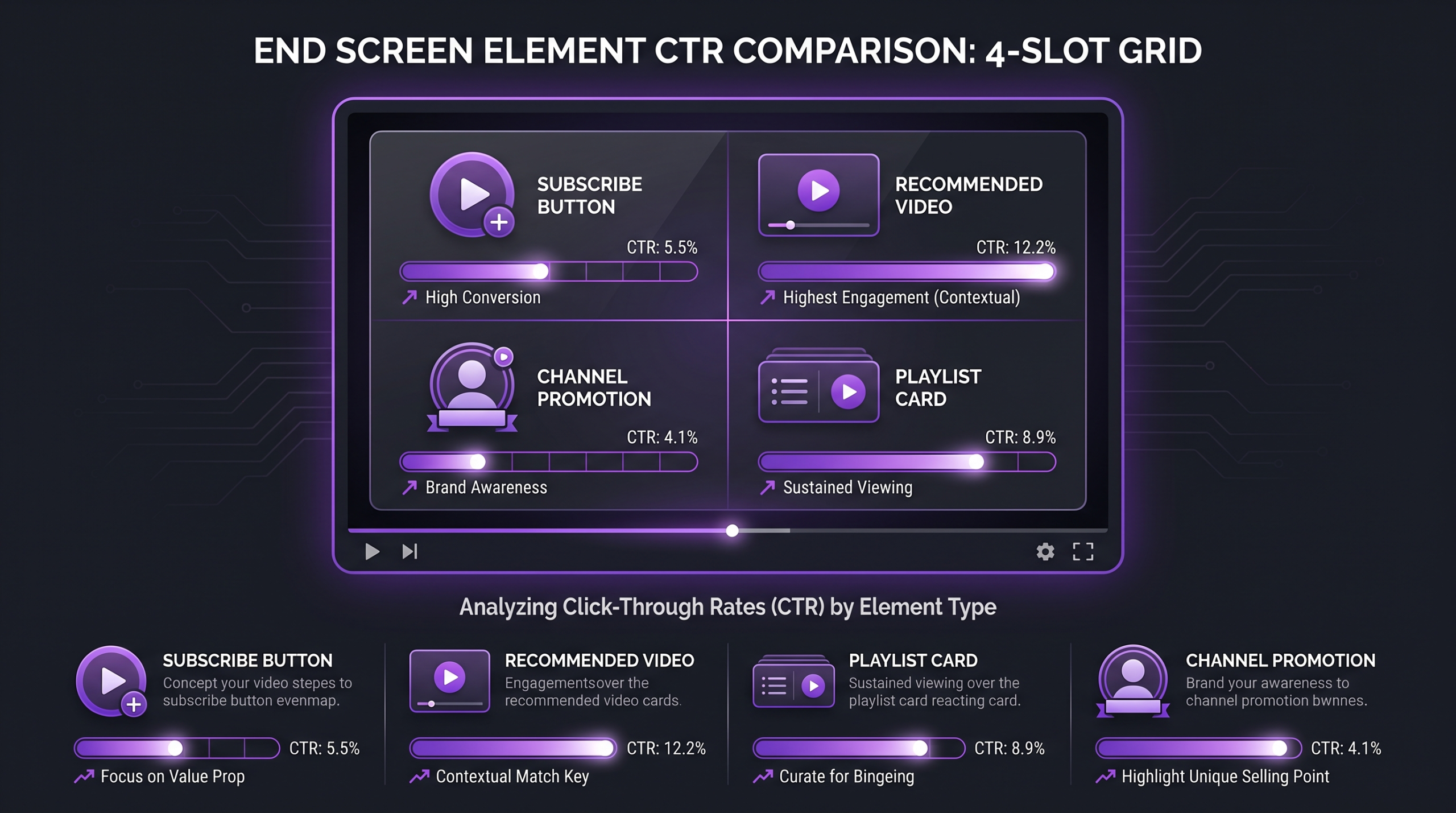
YouTube offers four types of end screen elements, and the right mix depends entirely on what you want a viewer to do after your video ends. Each element type has a distinct conversion goal, and choosing based on channel stage—growth versus engagement versus monetisation—matters more than simply filling all four slots.
Video or Playlist Element
This element directs viewers to another piece of content on YouTube—either a specific video, a playlist, or YouTube’s “best for viewer” dynamic recommendation. The “best for viewer” option instructs YouTube’s algorithm to surface whatever it predicts will keep that specific viewer watching, based on their history. For channels with a substantial back-catalogue, this option can outperform manually pinned videos because it personalises the recommendation per session.
When to override: if you have an intentional content funnel—for example, a free mini-course where each video leads to the next—pin the specific next video in the sequence rather than letting the algorithm choose. Series momentum matters more than algorithmic diversity in structured funnels.
Subscribe Element
The subscribe button element encourages viewers to follow the channel. It displays the channel’s icon alongside a Subscribe prompt. This element performs best on videos where the viewer has just received clear, high-value content and has no obvious next video to click to—for example, a standalone evergreen explainer rather than part of a series.
For channels still building their subscriber base, prioritising the subscribe element on top-of-funnel discovery videos (those driven by search or Browse) often yields better long-term results than adding another video recommendation. For established channels where subscribers already represent a large share of returning viewers, a video element may convert better.
Channel Element
This element promotes a different YouTube channel, complete with a custom message. It is most useful for collaboration videos, channel partnerships, or when you run a secondary channel you want to cross-promote. Outside of those scenarios, the channel element typically has less relevance than the other three types for single-channel operators.
External Website (YPP Required)
For YouTube Partner Programme members, end screens can link to an approved external website. This is the most direct monetisation path available through end screens—linking to a product page, booking form, or lead magnet. The external link element requires that the destination site is pre-approved by YouTube and must comply with community guidelines and terms of service. Violations can result in the link being removed or, in serious cases, account termination.
💡 Pro Tip: YouTube suppresses card teasers and video watermarks the moment your end screen activates. Time your end screen to start exactly when your verbal CTA begins—the visual and verbal message then land simultaneously with no competing overlays.
Conversion Strategy: Choosing the Right Element for Each Video
The most effective end screen is not the one that fills all four slots—it is the one where every element matches the viewer’s intent at that moment. Mismatched elements create cognitive friction: a viewer who just finished a tutorial on video colour grading does not need a generic playlist of unrelated content, they need either the next grading tutorial or a subscribe prompt to signal “there’s more where this came from.”
Channel-Stage Framework
For most B2B and brand channels—the core audience a video editing agency works with daily—the most common goal is session depth, not raw subscriber count. A corporate YouTube presence grows by building trust across a body of work, not by chasing sub milestones. That means the pinned video element, pointed at the most relevant next piece in a thematic cluster, typically outperforms the subscribe element for conversion to deeper engagement.
Editing Your Video to Maximise End Screen Click-Through
End screen CTR is not just a YouTube settings problem—it is an editing problem. The 15-20 seconds before your end screen activates determine how primed a viewer is to click. A poorly edited outro ruins an otherwise strong end screen setup, while a well-structured closing sequence can drive clicks even on modest view counts.
Understanding how to structure the editorial work that precedes an end screen is a core part of what professional video editing costs and why it matters beyond the surface-level cut. Editors who understand platform mechanics build videos that work as conversion assets, not just content deliverables.
The Outro Structure That Works
A high-converting outro follows a three-beat structure before the end screen activates:
Beat 1 — Close the content loop (5–10 seconds): Deliver the final takeaway cleanly. Viewers need to feel the content is complete before they are psychologically free to click away. An abrupt cut straight into the end screen without a verbal landing point leaves viewers disoriented.
Beat 2 — Verbal bridge (5 seconds): Name the next action explicitly. “If you want to go deeper on this, I made a video on [specific topic] — it’s up here.” The verbal reference must match the element on screen. Mismatches (saying “subscribe below” while pointing to a video card) confuse viewers and reduce CTR.
Beat 3 — Visual hold (end screen window): Keep the presenter on screen or switch to a clean branded hold frame. Avoid b-roll during the end screen window—it distracts from the interactive elements. The presenter’s eyeline should point toward the end screen elements when possible, guiding the viewer’s gaze.
Designing the End Screen Zone in Your Timeline
When editing, mark the end screen zone in your timeline before you start cutting the outro. Most professional editors working on YouTube content create a “lower-third safe zone” for the last 20 seconds, avoiding any title cards, lower thirds, or text overlays that would overlap with where YouTube places end screen elements. YouTube allows you to drag elements to custom positions in YouTube Studio, but there is no guarantee the default template positions will clear your motion graphics.
The practical solution: export a frame-accurate screenshot of your end screen layout from YouTube Studio, bring it into your NLE as a guide layer, and confirm nothing in your master export sits on top of an element. This is especially important for channels using animated lower thirds that might run into the final seconds.
💡 Pro Tip: Use a custom end screen still image (minimum 300×300 pixels per YouTube’s guideline) for your channel element. A clean, recognisable thumbnail outperforms the default auto-generated image for channel cross-promotion end screens.
For editors working inside a structured production workflow—the kind managed by a dedicated video editing service for YouTube creators—these end-screen editing conventions should be documented in the channel’s style guide and applied at the assembly stage, not as an afterthought on export. Retrofitting an outro after the fact costs revision time that compounds across a high-volume content calendar.
Card Placement and Timing: A Practical Framework
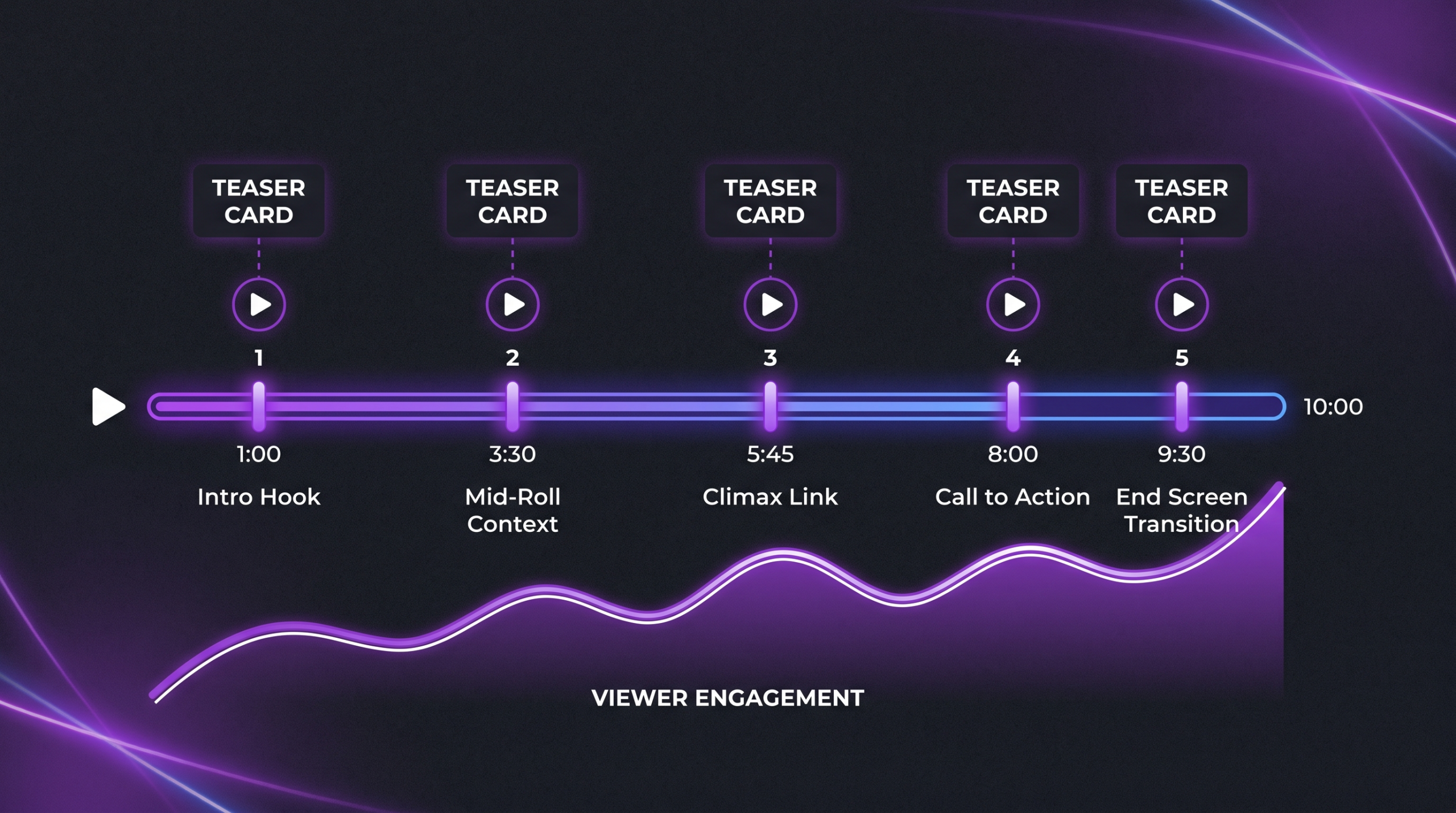
Cards give you five placement opportunities per video. Most channels use far fewer than five, which is often the right call—a card placed at the wrong moment feels intrusive and can increase the chance a viewer leaves the video. The goal is to place each card at the moment where the viewer’s internal question most closely matches the linked content.
When to Place a Card
At a question raised but not answered: When the presenter says “we covered this technique in another video,” or references a concept the current video does not explore in depth, that is the exact moment to trigger a card linking to the relevant content. The viewer’s curiosity is activated, and the card offers an immediate path.
At natural retention dip points: If your YouTube Analytics retention graph shows a consistent drop at a specific timestamp, consider placing a card just before that moment—approximately 5-10 seconds earlier. This can redirect viewers who are about to leave to related content on your channel, preserving session time rather than losing the viewer entirely.
Midpoint on longer content: For videos over 10 minutes, a mid-video card around the 40-60 percent mark tends to catch viewers who are engaged but may not reach the end. Linking to a playlist at this point captures viewers in a session and moves them to the next video before they self-eject. This is closely related to the session-flow insights you can draw from your video retention benchmarks—knowing where your audience typically drops gives you the placement signal directly.
Card Types and Their Use Cases
Video cards are the highest-relevance option when you have a specific piece of related content. The card teaser text is visible for a few seconds before collapsing, so the label needs to be specific and benefit-oriented—not just the video title.
Playlist cards work best when the viewer’s intent is broader: they want to learn more about a topic generally, not just watch a single next video. A card linking to a curated 8-video series on a topic signals commitment and depth.
Channel cards serve collaboration scenarios: if the video features a guest or references another creator’s work, a channel card at that mention is a natural and non-intrusive cross-promotion.
Teaser Text: The Often-Ignored Lever
When you set up a card in YouTube Studio, you can add optional teaser text that displays in the small pop-up before a viewer interacts with the card icon. This text is a micro-CTA—a short, specific prompt that tells the viewer exactly what they will get by clicking. “Watch next” is weak. “See the full workflow” or “Skip to Part 2 of this series” converts better because it answers the viewer’s implicit question: “Why should I stop what I’m watching and click this?”
Note: message and teaser text are required for channel cards, per YouTube’s documentation, so you cannot skip this field for that card type even if you are tempted to.
Reading YouTube Analytics to Iterate on Performance
YouTube Studio’s Analytics section contains a dedicated Engagement tab where you can track end screen and card performance at both the channel and individual video level. YouTube’s Analytics Help documentation describes the specific cards available under Engagement.
End Screen Metrics to Track
The “End screen element click rate” card shows how often viewers who see the end screen actually click an element. At the channel level, the “Top end screen element types” card lets you compare performance across element types—subscribe versus video versus playlist. The “Top videos by end screen” card surfaces which specific videos drive the most end screen clicks, which is the signal you use to identify your best-performing outro templates.
When iterating on end screen performance, look at click rate rather than absolute clicks. A video with 500 views and a 12 percent end screen click rate is a better template than a video with 10,000 views and a 1.5 percent end screen click rate. The high-click-rate video tells you something about the outro structure, element choice, or verbal CTA that is worth replicating.
Card Click Rate and Teaser Impressions
For cards, track both teaser click rate (how often a viewer who sees the teaser clicks the card) and overall card impressions. A card with high impressions but low click rate is being placed correctly (right audience, right moment) but has weak teaser copy or is linking to content that does not match viewer expectations at that timestamp. A card with low impressions may be placed too early or too late in the video, where few viewers see it.
A practical iteration loop: review your top-five videos by end screen click rate each month. Identify the structural pattern they share (outro length, verbal CTA format, element type used). Apply that pattern to the bottom-five videos by click rate. Test for 30 days and measure lift. This is a small, systematic loop that compounds over a content archive.
💡 Pro Tip: YouTube’s Engagement tab shows data at the video level when you click into Analytics for a specific video. Go there for card-by-card click-rate data on your best-performing uploads—channel-level aggregate data masks which specific card placements are doing the work.
Seven Common Mistakes That Kill End Screen and Card Performance
Most underperforming end screens trace back to a predictable set of errors. Identifying the specific mistake in your videos is faster than guessing at element changes.
1. Mismatched verbal and visual CTA. Saying “click below to subscribe” while displaying a video element, or gesturing toward an empty part of the frame, breaks the cognitive connection between what the viewer hears and what they see. Every verbal reference to an end screen element must align with what is actually on screen at that second.
2. Starting the end screen too late. YouTube allows up to 20 seconds. If you only activate your end screen at the last 5 seconds because you ran credits too long, you are leaving 75 percent of your conversion window unused. Design your outro to fill the full 15-20 seconds if possible, and move any credits to a separate card or description link.
3. Using the same end screen template across every video regardless of topic. A subscriber-growth end screen on an advanced-technique tutorial targeting existing fans is a mismatch. The viewers who make it to the end of that video are likely already subscribed. A pinned next-video element serves them better.
4. Placing cards too early. A card placed in the first 20 percent of a video fires before most viewers are sufficiently invested in the content to click away to related material. Cards placed at the 25-40 percent mark or at specific question-trigger moments perform better on most formats.
5. Ignoring the retention curve before setting card timestamps. Card placement should be data-driven, not intuitive. Check the retention graph for your top videos in YouTube Analytics before deciding where to place cards. The dip points on that graph are your placement signals. This is where the principles in a broader YouTube chapters and metadata strategy intersect with your card timing decisions—chapters tell you where topic transitions occur; retention dips tell you where viewers are actually checking out.
6. Not linking cards to specific moments in the target video. When you add a video card in YouTube Studio, you can optionally specify a timestamp in the linked video to open at. If your card links to a longer video and the relevant section starts at 4:30, send the viewer directly there. Dropping them at the beginning of a 20-minute video and hoping they find the relevant part is a session-flow leak.
7. Treating end screens as a set-it-and-forget-it feature. End screen templates can be applied retroactively to existing videos via YouTube Studio, but they still need to be reviewed when you publish new content. If you pinned a specific “best next video” six months ago and that video now has a newer, better replacement on the same topic, the old end screen is routing traffic sub-optimally. A quarterly review of your end screen templates on top-traffic videos is a low-effort, high-return maintenance task.
Frequently Asked Questions
How many end screen elements should I use?
Up to four for standard 16:9 videos, per YouTube’s documentation. Whether you should use all four depends on your goal. Two well-placed, contextually matched elements will typically outperform four cluttered elements that compete for attention. Start with two—a video recommendation and a subscribe button—and add more only when Analytics shows the two-element setup has strong click rates and you have a clear hypothesis for what the additional elements will do.
Can I add end screens to old videos?
Yes. YouTube Studio allows you to add and edit end screens on any eligible published video regardless of upload date, as long as the video is at least 25 seconds long and not designated as made for kids. Retroactively adding end screens to your highest-traffic archive videos is one of the fastest ways to increase session depth from existing content without producing new videos.
Do end screens affect my video’s watch time or ranking?
End screens extend session time when a viewer clicks through to another of your videos—that continued watch time is attributed to your channel and contributes positively. The click-through itself is a positive engagement signal. However, YouTube does not publish the specific weight these signals carry in ranking calculations, so avoid treating end screen CTR as a direct ranking metric. The primary benefit is session extension, which is measurable in your Analytics data under Audience → Returning viewers trends over time.
What is a good end screen click rate?
YouTube does not publish a universal benchmark, and published industry figures vary widely by channel size, niche, and audience platform mix. Rather than chasing a specific number, focus on improving your own channel’s rate over time. Identify your top three videos by end screen click rate, extract the structural pattern, and apply it to your next ten uploads. Your own channel’s trend line is more actionable than a cross-industry average that may not reflect your audience’s behaviour.
Can I use both cards and end screens on the same video?
Yes, and you should for most content over five minutes. Cards handle mid-video intent capture at topic-transition moments; end screens handle the closing conversion window. They serve different moments in the viewer’s journey and do not compete with each other in the timeline—YouTube suppresses card teasers once the end screen activates, so the viewer only sees one set of interactive elements at a time.
Verdict
End screens and cards are two of the few native conversion tools YouTube gives creators directly, and most channels under-use them either by applying them thoughtlessly or not reviewing their performance after setup. The spec constraints are fixed—five cards max, four end screen elements for 16:9, last 5-20 seconds, 25-second minimum—but the strategy space within those constraints is wide.
The clearest wins available to most channels right now: (1) review your highest-traffic archive videos and add or update end screens with contextually matched elements; (2) use your retention curve data from YouTube Analytics to place cards at drop-off risk moments rather than at arbitrary timestamps; (3) build your outro edit around the end screen window from the assembly stage, not as an afterthought.
For brand and B2B channels where each video is part of a longer content funnel, the session-flow architecture matters as much as any individual video’s production quality. Getting viewers from one video to the next is a product decision that happens in the edit suite and in YouTube Studio—not something the algorithm handles automatically on your behalf.
Ready for Video That Actually Converts?
Tell us about your project and we will put together a custom plan.