








![3D Explainer Video - ScribbleLive.mp4_snapshot_00.12_[2022.03.09_03.14.16]](https://increditors.com/wp-content/uploads/elementor/thumbs/3D-Explainer-Video-ScribbleLive.mp4_snapshot_00.12_2022.03.09_03.14.16-r7wb53mx72rxst3qcqyrfxdmeyzb5r9jbl0wbjujh4.png "3D Explainer Video – ScribbleLive.mp4_snapshot_00.12_[2022.03.09_03.14.16]")

























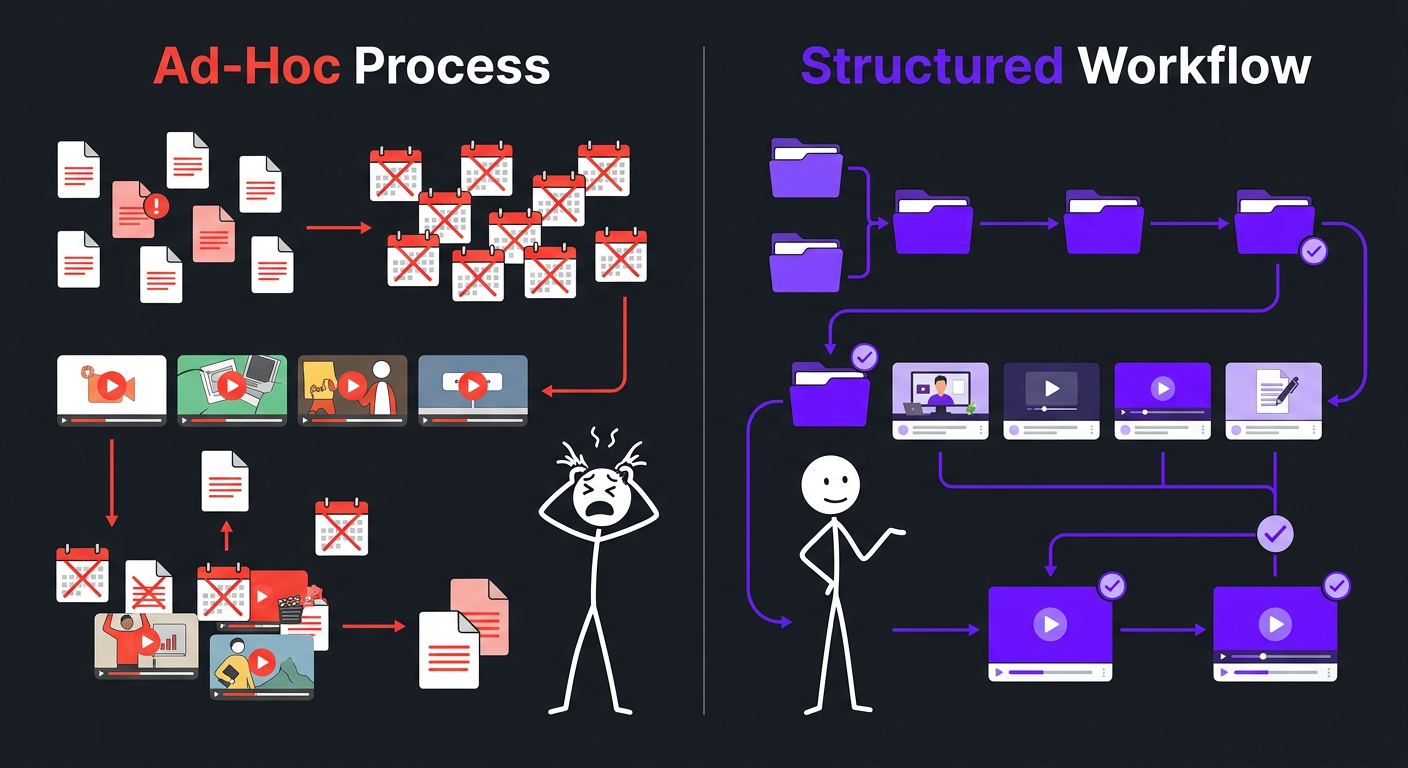
Most YouTube channels don’t fail because of bad ideas. They fail because of broken workflows.
The creator has talent. The content has potential. But somewhere between raw footage and published video, everything slows down. Files get lost. Revisions take days. Quality is inconsistent. Upload schedules slip. And the creator burns out — not from creating, but from managing chaos.
A video editing workflow for YouTube isn’t just about which buttons to click in Premiere Pro. It’s the entire system that takes your raw footage and turns it into a published, optimized video — consistently, repeatedly, and without you losing your mind in the process.
This guide covers the complete workflow, from file management to final export, with the tools, team structures, and processes that separate amateur operations from professional YouTube editing pipelines.
What’s in This Guide
- Why Workflow Matters More Than Talent
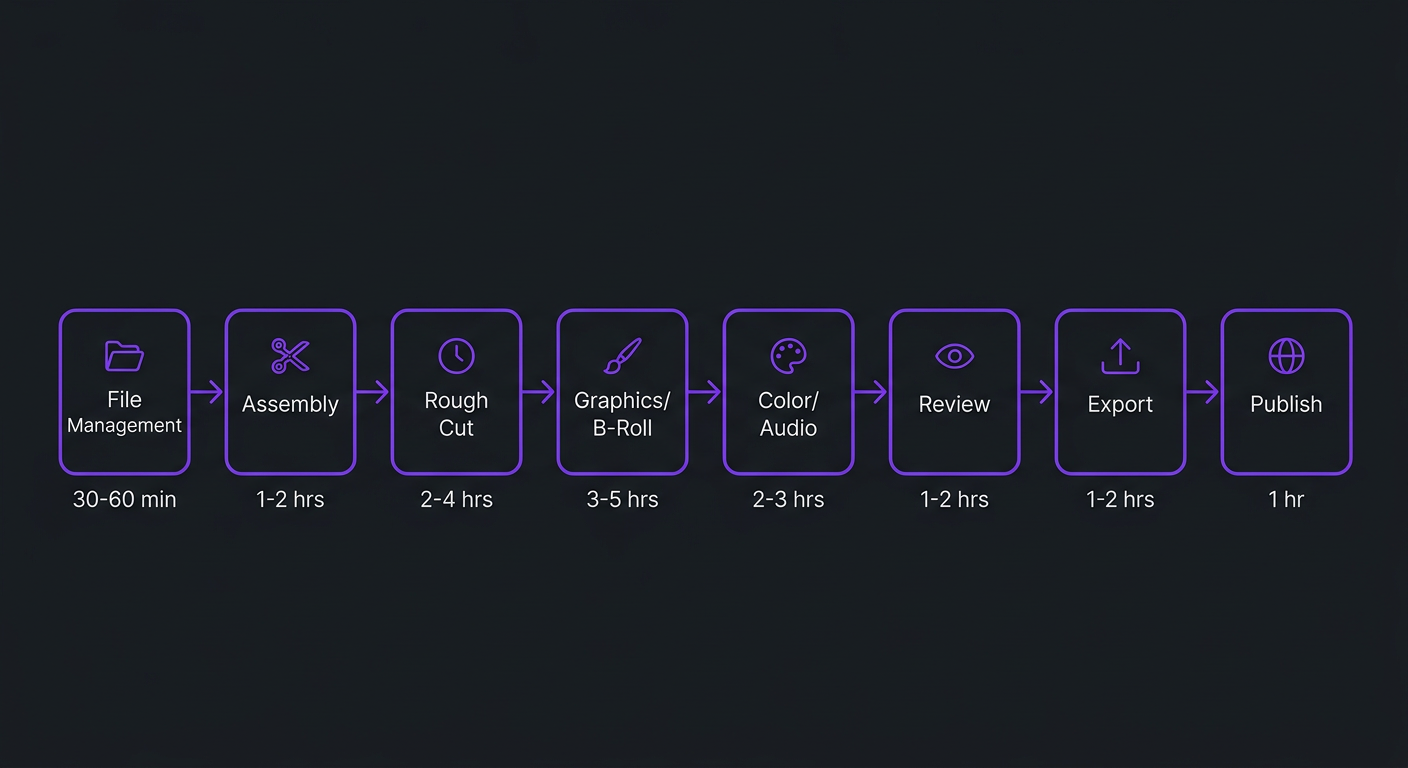
- The 8 Phases of a YouTube Editing Workflow
- Phase 1: File Management and Organization
- Phase 2: Assembly and Story Structure
- Phase 3: Rough Cut and Pacing
- Phase 4: Graphics, B-Roll, and Visual Elements
- Phase 5: Color Grading and Audio
- Phase 6: Review and Revision Process
- Phase 7: Export, Upload, and SEO
- The Tool Stack for Each Phase
- Team Structures That Scale
- Real Workflow Examples
- Common Workflow Mistakes
- FAQ
Why Your Editing Workflow Matters More Than Your Editing Talent
Here’s a counterintuitive truth: a mediocre editor with a great workflow will outperform a talented editor with no system.
Why? Because YouTube rewards consistency. The algorithm doesn’t care about your single best video — it cares about your channel’s overall output, reliability, and viewer engagement patterns. A workflow that produces good videos every week beats a chaotic process that occasionally produces great videos.
Consider what a broken workflow actually costs:
- Missed uploads: Every skipped upload resets momentum with the algorithm and your audience
- Inconsistent quality: Viewers who can’t predict what they’ll get stop subscribing
- Creator burnout: Disorganized processes drain energy faster than organized ones
- Wasted time: Searching for files, re-doing work, unclear revision cycles — these invisible time sinks add up to 5-10 hours per video
- Scaling impossibility: Without a system, going from 1 to 2 videos per week requires doubling your chaos
A solid video editing workflow for YouTube eliminates these problems. It makes quality predictable, timelines reliable, and growth achievable. Whether you edit yourself or work with a professional editing team, the workflow is what turns creative vision into consistent output.
The 8 Phases of a Professional YouTube Editing Workflow
Every YouTube video — from a simple vlog to a heavily produced essay — passes through the same fundamental phases. The difference between amateur and professional isn’t the number of phases. It’s how intentionally each phase is executed and how smoothly they connect.
Here’s the complete pipeline:
| Phase | Purpose | Time (10-min video) | Who Does It |
|---|---|---|---|
| 1. File Management | Organize, label, and prepare footage | 30-60 min | Creator or assistant |
| 2. Assembly | Build the story structure from raw footage | 1-3 hrs | Editor |
| 3. Rough Cut | Tighten pacing, refine structure | 2-4 hrs | Editor |
| 4. Graphics & B-Roll | Add visual elements, motion graphics | 2-6 hrs | Editor / Motion designer |
| 5. Color & Audio | Grade footage, mix audio, add SFX | 2-4 hrs | Colorist / Audio engineer |
| 6. Review & Revisions | Creator feedback and implementation | 1-3 hrs | Creator + Editor |
| 7. QC & Export | Final quality check, render, upload | 30-60 min | Editor / QC reviewer |
| 8. Publish & Optimize | Upload, write metadata, schedule | 30-60 min | Creator or PM |
| Total | — | 10-22 hrs | — |
Let’s break each phase down in detail.
Phase 1: File Management and Organization
This is the unsexy foundation that most creators skip — and pay for later. Proper file management saves 1-3 hours per video by eliminating the “where did I put that clip?” problem.
Folder Structure
Every video should have a standardized folder structure. Here’s what we use at Increditors for client projects:
- /[Video Title or ID]
- /01-Raw-Footage (camera files, organized by camera/angle)
- /02-Audio (separate audio recordings, music files)
- /03-Assets (logos, graphics, brand elements)
- /04-B-Roll (supplementary footage, stock clips)
- /05-Project-Files (NLE project files, After Effects comps)
- /06-Exports (rendered drafts and finals)
- /07-Thumbnails (PSD/Canva files and exports)
- /Notes.md (creator notes, timestamps, feedback)
File Naming Convention
Consistent file naming prevents confusion, especially when multiple people touch the project:
- Raw footage:
[Date]_[Camera]_[Scene]_[Take].mp4 - Exports:
[ChannelName]_[VideoID]_[Version]_[Date].mp4 - Graphics:
[VideoID]_[Element]_[Version].png
Transfer and Backup
Raw footage should be uploaded to cloud storage (Google Drive, Dropbox, or Frame.io) immediately after filming. Local copies stay on the camera card until the project is complete and delivered. This dual-location approach prevents data loss — the number one workflow disaster that’s entirely preventable.
For teams, Frame.io is the gold standard for file transfer and review. It allows annotated feedback directly on the video timeline, which eliminates the “at around 3 minutes and 47 seconds, the color looks weird” emails that waste everyone’s time.
Phase 2: Assembly and Story Structure
The assembly is the skeleton of your video. A skilled editor watches all raw footage (or works from a script/outline) and builds the narrative in order — selecting the best takes, establishing the story arc, and creating a watchable flow.
What Happens in the Assembly
- Selects: Best takes are identified and placed on the timeline
- Structure: Content is ordered to build engagement (hook → problem → solution → payoff)
- Pacing markers: Natural breakpoints are identified where B-roll, graphics, or pattern interrupts will go
- Dead air removal: Long pauses, verbal filler, and redundant sections are cut
The assembly should tell the complete story — just without any polish. If you mute the music, hide the graphics, and watch only the assembly, it should still make sense and hold attention. If it doesn’t, no amount of production polish will fix it.
The Hook: First 30 Seconds
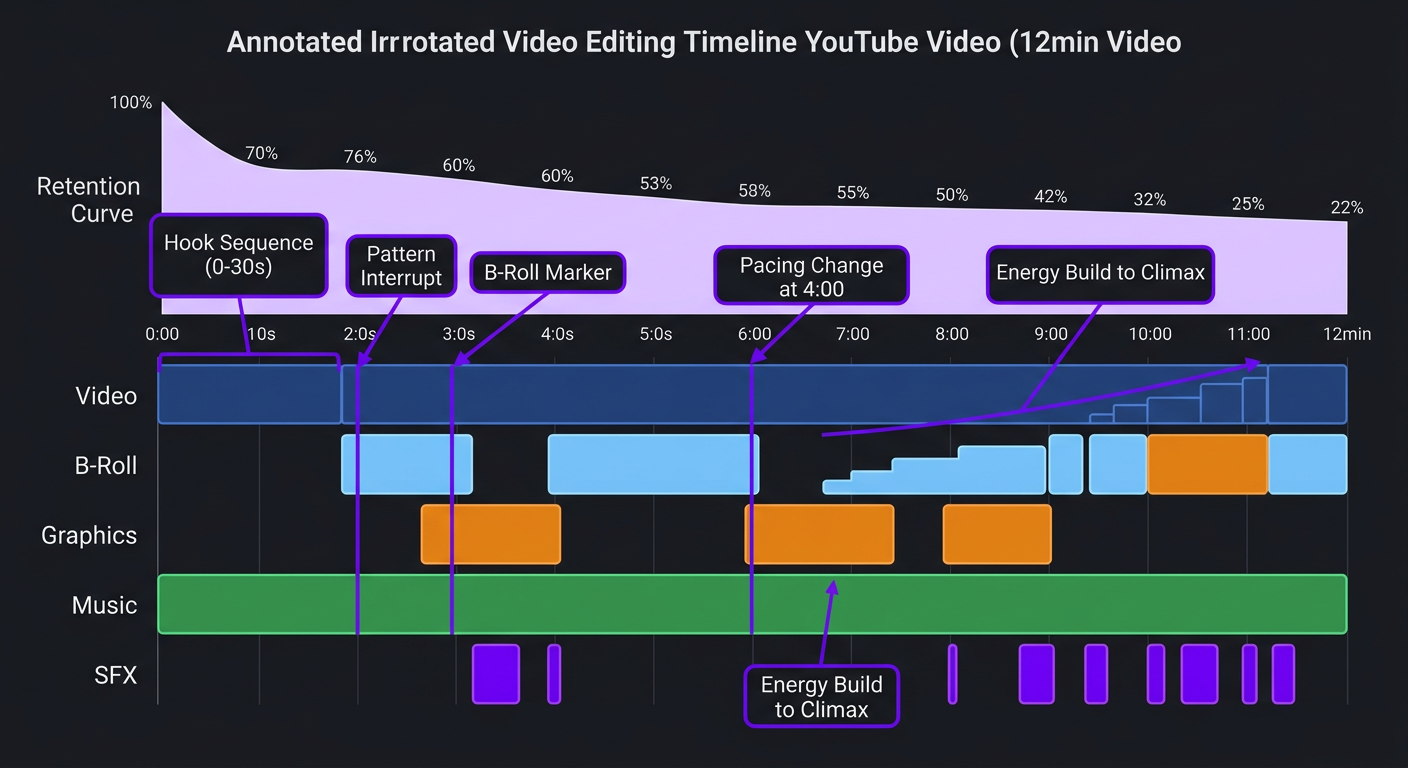
YouTube analytics consistently show that 20-40% of viewers leave within the first 30 seconds. The assembly phase is where this problem gets solved. The editor needs to front-load the most compelling moment — a surprising stat, a bold claim, a visual preview of what’s coming — before the standard intro.
This is one of the highest-leverage editing decisions in the entire workflow. Getting the hook right can improve overall retention by 10-20%, which cascades into more impressions, more subscribers, and more revenue.
Phase 3: Rough Cut and Pacing
The rough cut transforms the assembly into something that feels like a real video. This is where the editor’s creative judgment matters most.
Pacing Optimization
Pacing is the rhythm of your video — how quickly cuts happen, how long shots hold, where energy builds and releases. Different content types demand different pacing:
| Content Type | Average Cut Length | Pattern Interrupts | Energy Profile |
|---|---|---|---|
| Entertainment/Comedy | 2-4 seconds | Every 15-30 sec | High energy, fast rhythm |
| Educational | 4-8 seconds | Every 45-90 sec | Steady, builds with key points |
| Vlog/Lifestyle | 3-6 seconds | Every 30-60 sec | Dynamic, follows the story |
| Tutorial/How-to | 5-10 seconds | Every 60-120 sec | Methodical, clear transitions |
| Finance/Business | 4-7 seconds | Every 45-90 sec | Authoritative, data-driven breaks |
Professional editors internalize these pacing rhythms. They know when a shot has been held too long (viewer attention drops), when a sequence is too frenetic (viewers feel exhausted), and where strategic pauses create emphasis. This intuition is what separates a $150 edit from a $500 edit — and it directly impacts your retention graph.
B-Roll Placement
B-roll isn’t decoration — it’s a storytelling tool. In the rough cut, the editor identifies where the viewer needs visual variety (talking head shots getting stale), where a concept needs visual support (showing what you’re describing), and where energy needs a shift (transitioning between topics).
Placeholder markers or temporary stock footage go in during the rough cut. Final B-roll selection and integration happen in the next phase.
Phase 4: Graphics, B-Roll, and Visual Elements
This is where production value becomes visible. The rough cut established the story and pacing — now the visual layer gets built on top.
Motion Graphics
Common motion graphic elements in YouTube videos include:
- Lower thirds: Name and title cards for speakers
- Data visualizations: Animated charts, statistics callouts, comparison graphics
- Transition graphics: Chapter cards, segment dividers, topic transitions
- Callout animations: Arrows, circles, zoom effects highlighting specific elements
- Text animations: Key quotes, important numbers, or vocabulary displayed on screen
- Subscribe/CTA animations: Channel-branded engagement prompts
The key with motion graphics is restraint. Every graphic should serve a purpose — reinforcing a point, aiding comprehension, or maintaining engagement. Graphics added purely for “looking professional” often have the opposite effect, cluttering the visual field and distracting from the content.
Professional agencies maintain template libraries for each client. At Increditors, every channel we work with has a custom motion graphics package — lower thirds, transitions, callouts, and recurring elements — built during onboarding and refined over time. This ensures visual consistency across all videos without rebuilding assets every time.
B-Roll Integration
Final B-roll selection and integration happens here. Sources include:
- Creator-shot supplementary footage
- Screen recordings and demos
- Licensed stock footage (Artgrid, Storyblocks)
- Product shots or location footage
- Animated illustrations or diagrams
The edit should feel seamless — B-roll should arrive at the exact moment the viewer’s attention on the talking head starts to fade, and cut back to camera when the creator’s delivery demands direct eye contact.
Phase 5: Color Grading and Audio Mixing
These two disciplines are often undervalued by creators but have an outsized impact on perceived production quality. Viewers may not consciously notice good color and audio — but they immediately notice bad color and audio.
Color Grading Workflow
- Color correction: Normalize exposure, white balance, and contrast across all clips so footage looks consistent
- Shot matching: Ensure multi-camera footage and different lighting conditions appear cohesive
- Look development: Apply the channel’s signature color grade — warm, cool, cinematic, bright, desaturated, etc.
- Scene-specific grading: Adjust grade for different environments (indoor vs outdoor, day vs night)
DaVinci Resolve remains the industry standard for professional color grading, even for editors who cut in Premiere Pro or Final Cut. The roundtrip workflow (edit in one NLE, grade in Resolve, export back) is standard practice at the professional tier.
Audio Mixing Workflow
- Dialogue cleanup: Remove background noise, mouth clicks, plosives, and room echo using tools like iZotope RX
- Leveling: Ensure consistent dialogue volume throughout (target -16 LUFS for YouTube)
- Music bed: Select and place background music, automating volume levels around dialogue
- Sound effects: Add whooshes, impacts, ambient textures, and UI sounds that support the visual edit
- Final mix: Balance all audio elements so nothing competes with dialogue clarity
Audio quality is the single biggest indicator of production value to viewers. According to multiple YouTube creator surveys, viewers will tolerate mediocre video quality far longer than they’ll tolerate poor audio. If you’re choosing where to invest in your workflow, audio should come before color.
Phase 6: Review and Revision Process
The review phase is where most workflows break down. Without a clear process, revisions become an endless loop of vague feedback, misunderstood notes, and frustration on both sides.
The Effective Review Process
- First draft delivery: Editor sends the polished cut via Frame.io or a shared link with timestamp capability
- Creator review: Watch the entire video once without pausing. Note overall impressions. Then watch again, leaving specific, timestamped feedback.
- Feedback consolidation: All feedback goes in one place (not scattered across emails, DMs, and voice notes). One consolidated list, one time.
- Revision implementation: Editor addresses all notes in a single revision round. The revised version is delivered with a change log noting what was modified.
- Final approval: Creator reviews the revision. Minor tweaks may generate one more round. Major structural changes at this stage indicate a process problem, not an editing problem.
What Good Feedback Looks Like
| ❌ Bad Feedback | ✅ Good Feedback |
|---|---|
| “The pacing feels off” | “2:15-3:40 drags — can we tighten the B-roll section and cut the second example?” |
| “The colors don’t look right” | “The outdoor shots at 4:00 look too warm compared to the studio shots — can we cool them slightly?” |
| “I don’t like the music” | “The music from 6:00-8:00 is too upbeat for the serious topic. Something more subtle and ambient would fit better.” |
| “Make it more dynamic” | “The talking head section from 1:30-2:45 needs more visual variety — could we add screen recordings or B-roll of the product?” |
| “This isn’t what I wanted” | “The structure doesn’t match the outline — sections 3 and 4 should be swapped, and the hook should use the stat about 73% instead of the anecdote.” |
Specific, timestamped, actionable feedback reduces revision rounds by 50-70%. This is something we coach every creator on during onboarding — the better your feedback, the faster and more accurately revisions get implemented, and the sooner your video goes live.
Want a Workflow That Runs Without You?
Our teams handle every phase — from file organization to final delivery. You review, approve, and publish. That’s it.
Phase 7: Export, Upload, and Optimization
The technical final step matters more than most creators realize. Wrong export settings can degrade quality, cause processing issues on YouTube, or create file sizes that take hours to upload.
Recommended YouTube Export Settings (2026)
| Setting | Recommended Value | Notes |
|---|---|---|
| Resolution | 3840×2160 (4K) or 1920×1080 | 4K gets better encoding from YouTube even if displayed at 1080p |
| Codec | H.264 or H.265 | H.264 for compatibility; H.265 for smaller files at same quality |
| Frame rate | Match source (24/30/60fps) | Don’t convert frame rates — export at whatever you filmed |
| Bitrate | 35-68 Mbps (4K) / 16-24 Mbps (1080p) | VBR 2-pass for best quality-to-size ratio |
| Audio | AAC, 320kbps, Stereo | 48kHz sample rate |
| Color space | Rec. 709 (SDR) or HDR if supported | HDR requires specific workflow and grading pipeline |
Upload Optimization
Before hitting publish, ensure these elements are ready:
- Title: Keyword-optimized, under 60 characters, compelling hook
- Description: First 2 lines are critical (visible before “Show More”), include primary keyword, links, and chapter timestamps
- Tags: 10-15 relevant tags mixing broad and specific terms
- Thumbnail: High contrast, readable at mobile size, consistent with channel branding
- End screen: Configured to promote relevant next video and subscribe
- Cards: Placed at natural breakpoints to link to related content
- Chapters: Timestamps in description matching video sections
The upload optimization step is often rushed by tired creators who just spent 10 hours editing. In a proper workflow, this step is either handled by a dedicated team member or prepared in advance (title, description, and thumbnail drafted before editing even starts).
The Complete Tool Stack for Each Workflow Phase
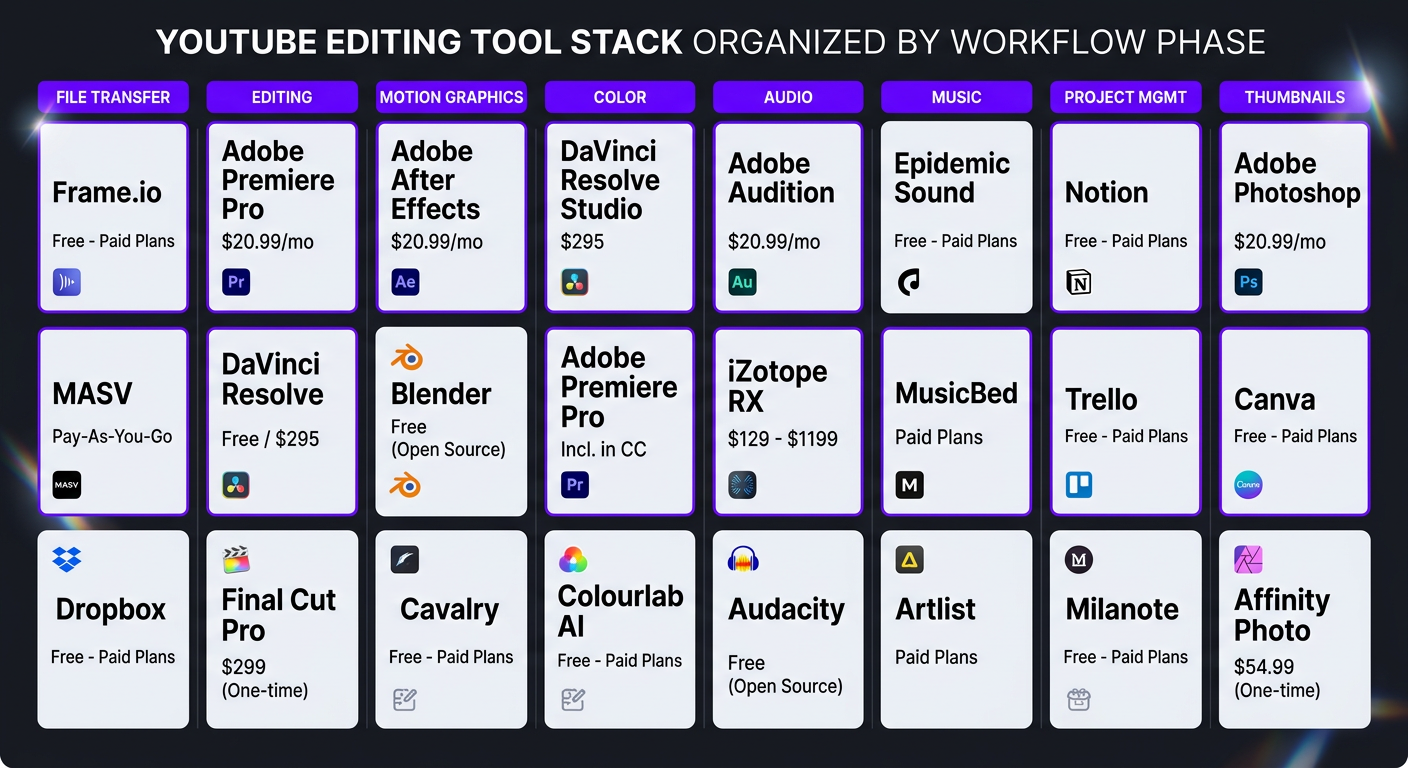
| Workflow Phase | Primary Tool | Alternatives | Cost |
|---|---|---|---|
| File Transfer | Frame.io | Google Drive, Dropbox | $15-$25/mo |
| Editing (NLE) | Adobe Premiere Pro | Final Cut Pro, DaVinci Resolve | $0-$23/mo |
| Motion Graphics | After Effects | Fusion (in Resolve), Apple Motion | $23/mo |
| Color Grading | DaVinci Resolve | Lumetri (in Premiere), FCPX built-in | Free-$295 |
| Audio Cleanup | iZotope RX | Adobe Audition, Audacity | $0-$399 |
| Music Licensing | Epidemic Sound | Artlist, Musicbed | $13-$17/mo |
| Project Management | Notion | Trello, Asana, Monday | Free-$10/mo |
| Review | Frame.io | Loom + Google Docs | $15-$25/mo |
| Thumbnails | Photoshop | Canva, Figma | $0-$23/mo |
| SEO/Upload | TubeBuddy | VidIQ | $0-$49/mo |
Total tool cost for a solo creator: $50-$150/month. For a team or agency, the tool stack is absorbed into the service cost — another advantage of outsourcing to a professional editing service.
Team Structures That Scale Your YouTube Workflow
As channels grow, the team behind the editing workflow grows too. Here are the most common team structures and when each makes sense:
Solo Creator (1-4 videos/month)
- One person does everything
- Works until ~10K subscribers or burnout (whichever comes first)
- Bottleneck: editing time limits content output
Creator + Freelance Editor (4-8 videos/month)
- Creator films and provides direction
- Freelancer handles editing, basic graphics, and delivery
- Creator reviews and publishes
- Bottleneck: freelancer capacity, no backup, creator manages the process
Creator + Agency Team (8-20 videos/month)
- Creator films and provides brief notes
- Dedicated editor handles all editing
- Motion designer creates graphics
- Project manager coordinates timeline and revisions
- QC reviewer checks final output
- Creator reviews and approves
- Bottleneck: filming speed (the creator becomes the bottleneck, not editing)
Full Production Team (20+ videos/month)
- Multiple editors handling different content types
- Dedicated colorist, audio engineer, motion designer
- Content strategist planning the editorial calendar
- PM managing the pipeline
- Creator focuses exclusively on filming and high-level creative direction
The Increditors enterprise model provides the third and fourth structures as a service — you get the full team without hiring, training, or managing anyone. The workflow we build for your channel is documented, repeatable, and resilient to any individual person’s availability.
Real Workflow Examples: Channels That Got It Right
TuMeke: Building a Scalable SaaS Content Workflow
TuMeke is an AI-powered workplace safety platform — a niche B2B product where video content plays a critical role in education, product demos, and thought leadership. Their challenge wasn’t editing talent — it was workflow.
Before working with us, TuMeke’s video production was ad-hoc. Content was filmed when someone had time, edited by whoever was available, and published without a consistent schedule or quality standard. The result: sporadic uploads, inconsistent branding across videos, and a growing library of raw footage that never got edited.
We built them a structured workflow:
- Content calendar: Monthly planning with defined video types (product updates, educational content, customer stories)
- Filming templates: Standardized shooting guides so raw footage arrived in a consistent format
- Dedicated editor: One editor who learned their product, brand voice, and audience deeply — no rotation
- 48-hour turnaround: Footage in on Monday, first draft by Wednesday, published by Friday
- Asset library: Custom graphics package with branded templates for SaaS-specific content (UI demos, data visualizations, feature callouts)
The workflow transformed their output from 1-2 inconsistent videos per month to 6-8 polished videos on a predictable schedule. More importantly, the system was documented well enough that it ran without constant oversight from TuMeke’s leadership — they reviewed and approved, and the rest happened automatically.
eSafety: Government-Grade Quality at Scale
eSafety, an Australian government entity focused on online safety, needed video content that met exacting quality standards — both technically and in terms of messaging accuracy. There is zero room for error when you’re producing content under a government banner.
Their workflow requirements were uniquely demanding:
- Multi-layer approval process (creative team → legal review → executive sign-off)
- Strict brand guidelines with zero tolerance for deviation
- Accessibility requirements (captions, audio descriptions, high-contrast graphics)
- Multiple video formats from single shoots (long-form educational, short social clips, presentation decks)
We designed a workflow with extended review stages and compliance checkpoints built in. Every video passed through three internal QC rounds before reaching eSafety’s review team. Graphics were pre-approved in template form so individual videos didn’t require design review for standard elements. The revision process was structured with clear escalation paths for different types of feedback.
The result was a production-grade workflow that delivered consistent, compliant content at a pace that would be impossible with an ad-hoc process. eSafety got broadcast-quality videos without building an in-house post-production department.
7 Common YouTube Editing Workflow Mistakes
After building workflows for hundreds of channels, these are the mistakes we see most frequently:
1. No File Organization System
Dumping all footage into a single folder with camera-generated file names (IMG_0342.mp4) is a guaranteed time-waster. As projects accumulate, finding specific clips becomes a nightmare. Invest 30 minutes upfront in a folder structure and naming convention. It pays back 10x over the life of the channel.
2. Skipping the Assembly
Jumping straight into detailed editing without first building the story structure leads to tunnel vision. You’ll spend 3 hours perfecting a section that ultimately gets cut because the overall narrative doesn’t work. Build the skeleton first. Polish it after.
3. Editing Without a Style Guide
Every video should look like it belongs to the same channel. Without a documented style guide — covering fonts, colors, graphic styles, music preferences, pacing targets, and brand voice — every video becomes a new creative exercise. Style guides create consistency, and consistency builds brand.
4. Unclear Revision Process
If your feedback process is “send me the video and I’ll let you know what I think,” you’re setting up an endless revision loop. Define how many rounds are included, where feedback gets submitted, how quickly revisions are turned around, and what constitutes a “new draft” vs a “minor tweak.”
5. Ignoring Audio
Spending 5 hours on color grading and 15 minutes on audio is backwards. Viewers will watch a great-sounding video with mediocre visuals. They won’t watch a gorgeous video with bad audio. Allocate workflow time proportionally to impact.
6. No Backup Plan
What happens when your one editor is sick? On vacation? Has a family emergency? If the answer is “I guess we skip a week,” your workflow has a single point of failure. Agencies like Increditors solve this structurally — there’s always a backup editor who knows your channel. Solo freelancer setups don’t have this safety net.
7. Not Batching
Filming one video, editing it, publishing it, then starting the next one is the least efficient approach possible. Batch filming (shooting 2-4 videos in a day), batch editing (editing similar segments across videos), and batch uploading (scheduling a week of content in one session) multiply efficiency. The workflow should be designed for batching from the start.
Frequently Asked Questions
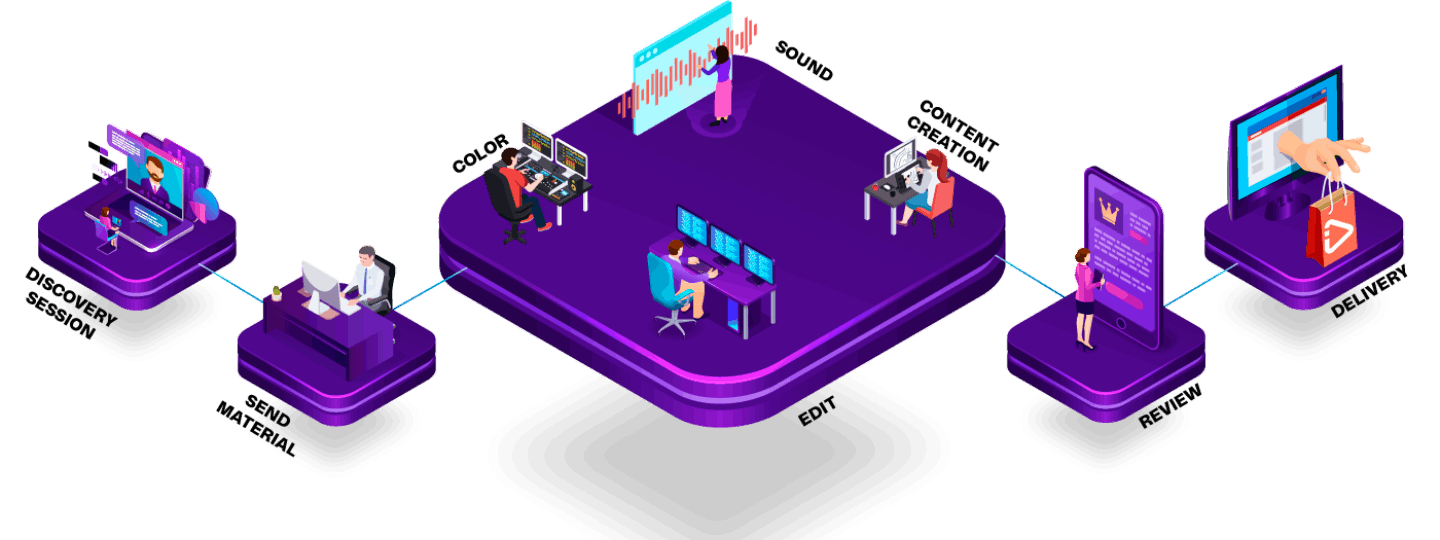
A solid workflow follows eight phases: file management, assembly, rough cut, graphics/B-roll, color/audio, review and revisions, export, and publish/optimize. Each phase should have clear ownership, defined deliverables, and a handoff process. The workflow should be documented so it’s repeatable — not dependent on memory or improvisation.
Professional teams use project management tools (Notion, Trello, or Asana) to track each video through production stages. File sharing happens via Google Drive or Frame.io with annotated review. Dedicated editors handle creative work while project managers coordinate deadlines. Most established channels maintain a style guide for consistency.
Essential: a primary NLE (Premiere Pro, Final Cut Pro, or DaVinci Resolve), cloud storage (Google Drive or Frame.io), music licensing (Epidemic Sound or Artlist), project management (Notion or Trello), and thumbnail creation (Canva or Photoshop). Optional: After Effects for motion graphics, iZotope RX for audio cleanup. Total cost for solo creators: $50-$150/month.
For a standard 10-15 minute video, expect 8-15 hours across all phases with a professional editor. Turnaround is typically 2-4 days with a dedicated editor or 24-48 hours with an agency team. Self-editing creators often take 5-10 days due to competing responsibilities.
In-house makes sense at 15+ videos/month with budget for salary ($40K-$80K/year per editor), equipment, software, and management. For 4-12 videos monthly, outsourcing to an agency like Increditors is more cost-effective — you get a full team without hiring overhead. See our pricing for comparison.
Three elements create consistency: a documented style guide (colors, fonts, graphics, pacing, music), template projects in your NLE (pre-built elements), and the same editor or team on every video. Editor rotation is the biggest consistency killer — every new person means a brand reset. Agencies with dedicated editors solve this.
Need a Workflow That Actually Works?
We’ve built editing workflows for YouTube channels, SaaS companies, and government agencies. Let us build yours — or just handle the whole thing for you.
This guide reflects YouTube production best practices as of March 2026. Tool recommendations are based on industry-standard workflows used by professional editing teams. For current Increditors workflow solutions and pricing, visit our pricing page or schedule a call.