










![3D Explainer Video - ScribbleLive.mp4_snapshot_00.12_[2022.03.09_03.14.16]](https://increditors.com/wp-content/uploads/elementor/thumbs/3D-Explainer-Video-ScribbleLive.mp4_snapshot_00.12_2022.03.09_03.14.16-r7wb53mx72rxst3qcqyrfxdmeyzb5r9jbl0wbjujh4.png "3D Explainer Video – ScribbleLive.mp4_snapshot_00.12_[2022.03.09_03.14.16]")
































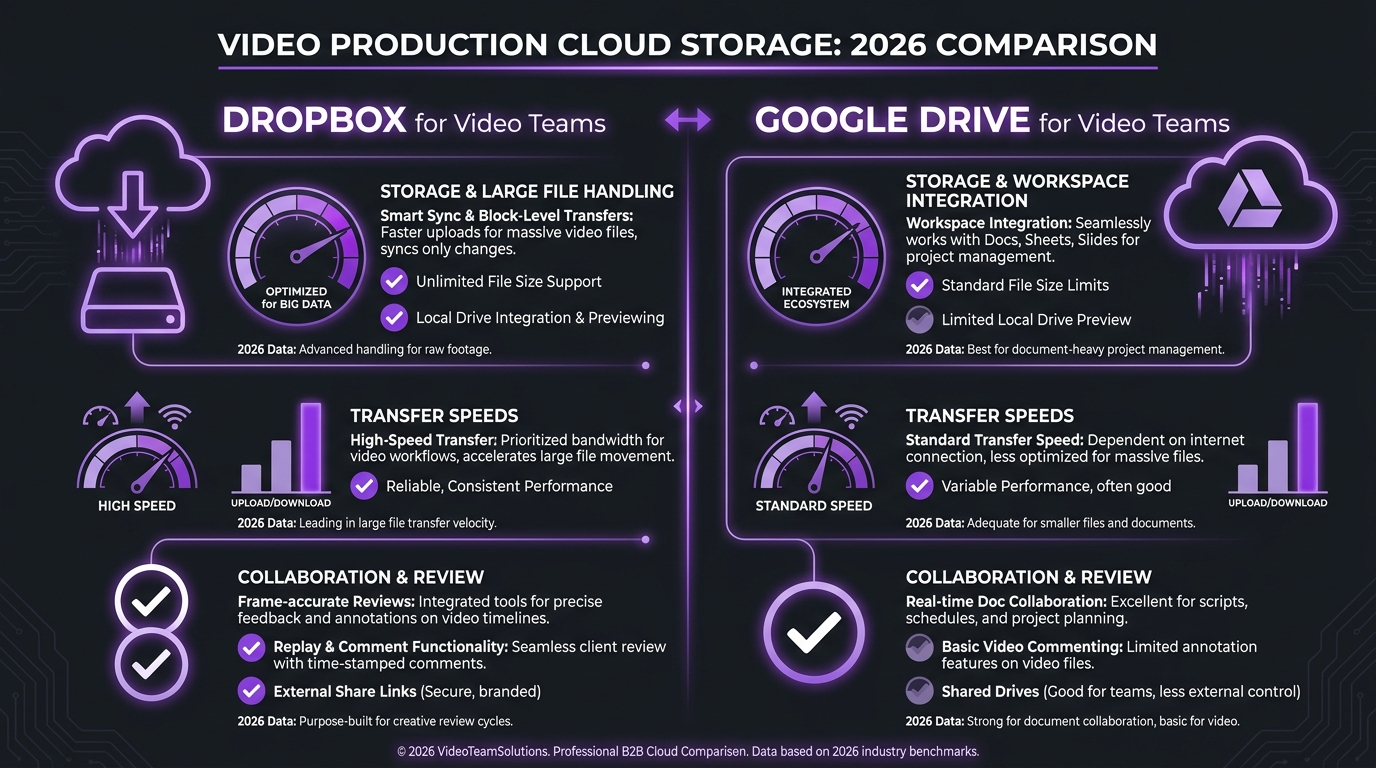
In 2026, Dropbox wins for serious video teams handling large files daily — block-level sync, Dropbox Replay for frame-accurate review, and transfer links up to 100 GB. Google Drive wins for lean teams already in the Google ecosystem who prioritize collaboration and budget. Dropbox starts at $9.99/month for 2 TB solo; Google Workspace starts around $6/user/month with 30 GB pooled. For agencies delivering final cuts to clients, Dropbox is the cleaner choice. For content teams living in Docs and Sheets, Google Drive fits naturally.
- Why Cloud Storage Is a Make-or-Break Decision for Video Teams
- Upload Speed and Sync Performance Compared
- Storage Capacity and Pricing: 2026 Plans Side by Side
- Large File Delivery and Client Experience
- Google Drive Video Quality: Preview and Playback in 2026
- Collaboration Tools for Video Teams
- Video Team File Sharing: Workflows That Actually Work
- Best Cloud Storage for Video Teams: 2026 Verdict
- FAQ
Why Cloud Storage Is a Make-or-Break Decision for Video Teams
Video production is one of the most storage-intensive workflows in modern business. A single 4K ProRes file from an interview shoot can run 40–80 GB. A week of footage for a documentary series can easily exceed a terabyte. For video teams, cloud storage is not a background utility — it is the backbone of every delivery, every revision cycle, and every client hand-off.
The wrong storage platform costs you in three ways: slow syncs that make remote collaboration miserable, clunky delivery links that confuse clients, and version control nightmares where nobody knows which cut is final. This guide cuts through the marketing language and compares Dropbox vs Google Drive specifically for video production — upload speed, file size limits, playback quality, collaboration tools, and real 2026 pricing.
Whether you run a two-person studio or a full video editing company with distributed teams across time zones, the platform you choose shapes how fast you move and how professional your client experience feels.
What Video Teams Actually Need from Cloud Storage
The requirements for video teams differ sharply from standard office workflows. Teams primarily sharing PDFs and spreadsheets care about access control and version history for text files. Video teams care about something different entirely:
- Raw transfer speed — uploading a 20 GB render file should take minutes, not an hour
- Large file handling — no silent compression, no size caps that kill mid-upload
- Video preview quality — clients should be able to watch your H.264 export without it turning into a pixelated mess
- Collaboration on video feedback — timestamped comments, frame-accurate notes, not just “looks good at 1:23”
- Client-facing delivery links — clean, brandable, password-protected, with download controls
- Version control — being able to pull back a previous cut when the client changes direction again
Upload Speed and Sync Performance Compared
Upload speed is partly determined by your internet connection, but the storage platform’s architecture matters significantly for large files. Dropbox uses block-level sync — when you modify a large file, only the changed portions are re-uploaded. Google Drive re-uploads the full file on each change.
For most video files (which are largely immutable renders, not frequently-edited documents), this distinction matters most during initial upload. Where the difference becomes stark is when teams work with project archives that are repeatedly updated — Dropbox’s delta sync keeps these synced dramatically faster once the initial upload completes.
File Size Limits in 2026
Google Drive imposes a 5 TB per-file upload limit when using the Drive website, and files converted to Google formats are limited to smaller sizes. For raw video uploads (mp4, mov, mxf), the 5 TB cap is generally not a blocker. However, the Google Drive desktop app has historically been less reliable for continuous large-file uploads compared to Dropbox.
Dropbox has no stated per-file size limit on paid plans. Teams regularly transfer ProRes 4K and even raw RAW files through Dropbox without interruption. Dropbox’s LAN sync also means files shared between team members on the same network transfer at local speeds — a significant advantage for in-studio teams.
💡 Pro Tip: If your team works from a shared office, Dropbox’s LAN sync can effectively make cloud storage feel like a local NAS for files already in another team member’s Dropbox. This is one of the most underused features for video production studios.
Storage Capacity and Pricing: 2026 Plans Side by Side
Pricing for both platforms evolved in 2025–2026. Here is a direct comparison of the current plans most relevant to video teams, based on publicly available pricing as of Q4 2026:
Prices shown are approximate USD equivalents as of Q4 2026. Check Dropbox’s official plans page and Google Workspace pricing for current rates in your region.
The Real Cost for a 5-Person Video Team
For a five-person team handling 4K video, the math looks like this:
- Dropbox Standard: 5 users × $15 = $75/month for 3 TB shared storage with 180-day version history
- Google Workspace Standard: 5 users × $12 = $60/month for 2 TB pooled with recording-capable Meet
The $15/month difference becomes a question of what you’re buying. Google Workspace bundles Gmail, Meet, Calendar, Docs, and Sheets — if your team doesn’t already pay for those separately, the value case for Google is strong. Dropbox Standard is pure storage and file management, but it includes Dropbox Replay which provides frame-accurate video review — a feature that would otherwise require a separate tool like Frame.io or Vimeo Review.
Large File Delivery and Client Experience
When a professional video editing agency delivers a final cut to a client, the delivery experience is part of the product. A clunky Google Drive link that requires a Google account to view, or a download that starts at 3 MB/s, reflects on the production quality even if the edit itself is flawless.
Dropbox Transfer: Purpose-Built for Client Delivery
Dropbox Transfer is a dedicated feature for sending large files to recipients. On Standard and Advanced plans, you can send up to 100 GB per transfer. Transfers are:
- Password-protected (Standard and above)
- Set with custom expiration dates
- Branded with your company identity (Advanced plans)
- Tracked — you see when the recipient downloaded
Recipients do not need a Dropbox account. They click the link, preview or download. This is the cleanest client delivery flow either platform offers without upgrading to a dedicated review tool.
Google Drive Shared Links: Functional but Not Purpose-Built
Google Drive’s shared link system is familiar to most clients, which is both its advantage and its limitation. The familiarity means most recipients know how to access the file. But the experience is not designed for client delivery — there is no download tracking, no expiration control on standard plans, and no branding. For sending 20 GB video files to a client, Google Drive’s shared link system gets the job done but feels like a workaround rather than a polished delivery workflow.
💡 Pro Tip: For teams that need more than either platform natively offers for client review — timestamped comments directly on video frames, approval workflows, version comparison — consider a dedicated review platform like Frame.io alongside your cloud storage. Cloud storage and video review tools solve different problems.
Google Drive Video Quality: Preview and Playback in 2026
One of the most common questions from teams considering Google Drive is about video quality — specifically, whether Google Drive compresses or degrades video files during storage or preview. Here is the direct answer: Google Drive does not permanently compress video files you upload. Your original file is preserved exactly as uploaded. What Google Drive does compress is the preview stream it generates for in-browser playback.
In-Browser Preview vs Downloaded File Quality
When a client opens a video link in Google Drive, they see a transcoded preview — typically compressed to a lower bitrate for web streaming. This can look noticeably softer than your original, especially for high-motion content or anything shot with high ISO. However, when the same client downloads the file, they receive your original at full quality.
This creates a support burden: clients watch the preview, think the quality is bad, and raise concerns. You then explain the download vs preview distinction. For every project where the preview is the de-facto first impression, this is a real friction point.
Dropbox Video Preview Quality
Dropbox also transcodes video for browser preview, but the transcoded quality has generally been rated higher in production team surveys. More importantly, Dropbox Replay (included on paid plans) provides a dedicated video review interface that plays files at a much higher quality target than the standard preview. For formal review cycles, Dropbox Replay is the correct tool — not the standard folder preview.
If preview quality for client review is your primary concern, neither platform should be your final delivery channel. Work through a professional post-production workflow that includes a dedicated review tool, with cloud storage as the master file repository behind it.
Collaboration Tools for Video Teams
Video team collaboration involves two distinct workflows: internal (editors, producers, and directors working together) and external (client reviews, approvals, and feedback). Each platform handles these differently.
Google Drive: Ecosystem Integration Wins Internally
If your production company already runs on Google Workspace — Gmail, Calendar, Meet, Docs — Google Drive is embedded seamlessly in that ecosystem. Call sheets, shot lists, scripts, and briefs live in Drive alongside the project folder. Team members access everything from a single account. This zero-friction integration is Google Drive’s strongest argument for video teams.
Google has also integrated Gemini AI into Workspace in 2025–2026, enabling features like automatic meeting transcription, smart file search, and AI-generated summaries. For teams managing large project archives, AI-powered search can reduce the time spent hunting for the right version of a file.
Dropbox: Stronger for External Client Collaboration
Dropbox’s collaboration story for video teams centers on Dropbox Replay — a built-in video review tool with frame-accurate commenting, annotations, version comparison, and approval workflows. For client reviews, this is a meaningfully better experience than sharing a Google Drive link and asking clients to timestamp their feedback in an email.
Paid Dropbox plans include 4 file uploads to Dropbox Replay with live review, version history, and video collaboration. For teams doing light to moderate client review volume, this is genuinely competitive with standalone review tools. For agencies handling high-volume review cycles across multiple concurrent projects, a dedicated tool still makes more sense — but Dropbox Replay covers the use case for most independent studios.
Video Team File Sharing: Workflows That Actually Work
Both platforms support folder sharing, but the practical workflow for video production differs. Most experienced production teams use a hybrid approach: one platform for raw asset storage and internal handoffs, another for client delivery and review.
A Practical Video Team File Sharing Setup
Here is a workflow many production companies adopt when asked to choose between the two:
- Raw footage archive: Dropbox (better for large files, version control, LAN sync in-studio)
- Project documents (briefs, scripts, shot lists): Google Drive (built-in collaboration on Docs/Sheets)
- Client delivery: Dropbox Transfer (100 GB, password-protected, download tracking)
- Client review cycles: Dropbox Replay for lighter review, dedicated tool (Frame.io, Vimeo) for complex projects
This hybrid approach is not available to every team — smaller studios typically need to commit to one platform for budget reasons. In that case, the decision framework below applies.
Decision Framework: Which Platform Is Right for Your Team?
Choose Dropbox if you:
- Work with files consistently over 5 GB
- Have an in-studio team that benefits from LAN sync
- Deliver final cuts directly to clients and need a clean delivery experience
- Need frame-accurate client review without buying a separate tool
- Work in ProRes, RAW, or other large-format codecs
- Need version history beyond 30 days
Choose Google Drive if you:
- Already use Google Workspace for email and docs
- Work primarily with compressed delivery formats (H.264/H.265)
- Have a small team (under 5) with limited budget
- Collaborate heavily on scripts, briefs, and project documents
- Your clients are comfortable with Google links
- Want AI-powered search and Gemini features built in
For agencies looking to understand what a fully optimized post-production workflow looks like, our 2026 guide to unlimited video editing services covers how top teams structure their delivery and storage systems end-to-end.
Best Cloud Storage for Video Teams: 2026 Verdict
After comparing upload performance, file size handling, pricing, delivery experience, video preview quality, and collaboration tools, here is the 2026 verdict:
Dropbox is the better platform for video teams that prioritize performance and client experience. Block-level sync, LAN sync, Dropbox Transfer, Dropbox Replay, and longer version history all point to a platform designed with media-heavy workflows in mind. The premium pricing is justified for agencies and production companies where storage is a core business tool.
Google Drive is the better platform for teams where storage is secondary to collaboration. If your team runs on Workspace, adds budget constraints, and primarily shares H.264 exports rather than RAW files, Google Drive is a rational choice. The Gemini AI integration adds genuine value for teams that work with large project archives and need intelligent file search.
Neither platform replaces a dedicated video review tool for serious production workflows. Both are storage and sync infrastructure — what you layer on top (review tools, project management, client communication) determines the actual experience for your clients and team.
If you want to see how a professional post-production team handles storage, review, and delivery at scale, the team at Increditors can walk you through what an optimized workflow looks like for your specific content volume.
FAQ
Dropbox vs Google Drive: Which is better overall in 2026?
Neither platform is universally better — the right answer depends on your workflow. Dropbox is better for large file handling, version control, and client delivery with its Dropbox Transfer feature. Google Drive is better for teams deeply embedded in the Google ecosystem who need tight integration with Gmail, Docs, Meet, and Gemini AI. For video-heavy workflows, Dropbox edges ahead. For document-heavy collaborative workflows, Google Drive wins.
Is Dropbox or Google Drive better for video production teams specifically?
Dropbox is generally better for video production teams. Block-level sync reduces re-upload time for large files, LAN sync accelerates transfers between studio machines, Dropbox Replay provides frame-accurate client review, and Dropbox Transfer handles clean client delivery up to 100 GB. Google Drive handles video files adequately but was not designed with production workflows in mind. For agencies and studios where storage is a daily operational tool, Dropbox’s video-specific features justify the slightly higher price point.
What is the best cloud storage for video teams in 2026?
For most video teams, Dropbox Standard ($15/user/month) offers the best balance of storage capacity (3 TB team pool), version history (180 days), and video-specific features (Replay, Transfer). Teams on a tight budget can use Dropbox Plus ($9.99/month, solo) or Google Workspace Standard (~$12/user/month). For teams that need more than storage alone — combined with email, calendar, and docs — Google Workspace delivers better overall value per dollar. For pure video production storage, Dropbox wins.
Does Google Drive compress or reduce video quality?
Google Drive does not permanently compress video files you upload — your original file is stored at full quality. However, the in-browser preview stream is transcoded at a lower bitrate for web streaming, which can appear noticeably softer than the original. This affects how clients perceive your work if they watch the preview rather than downloading. For client review, always share via a proper preview link or ask clients to download for accurate quality assessment. Dropbox has the same preview transcoding behavior, though quality targets vary.
What is the best approach to video team file sharing between editors and clients?
The most effective video team file sharing setup uses different tools for different stages. For internal transfers between editors, Dropbox with LAN sync or a shared network drive is fastest. For client delivery of final renders, Dropbox Transfer (up to 100 GB, password-protected) is the cleanest frictionless option. For review cycles requiring frame-accurate feedback, use a dedicated review tool (Dropbox Replay for light volume, Frame.io or Vimeo Review for agencies). Google Drive works as an alternative for document-heavy projects where video is secondary to scripts, shot lists, and briefs.
Ready for Video That Actually Converts?
Tell us about your project and we will put together a custom plan.